
Frequently Asked Questions
Can I query Pix keys?
According to BCB Resolution No. 1, dated August 12, 2020, in Section II - "Access," there are specific rules regarding who can access the information in the Directory of Transactional Account Identifiers (DICT). This resolution clarifies that access to this information can be obtained by both direct and indirect participants. The BCB specifies who is allowed access to the environment, and any actions not outlined in the regulations are prohibited. Therefore, individuals or entities that do not qualify as direct or indirect participants do not have access to this information.
How can I identify the source of webhook triggers?
We utilize dynamic IPs to send our webhooks, meaning that the IP addresses may change with each transmission. To ensure security and proper identification of the webhooks sent by our platform, we recommend configuring a custom header in the webhook. Below is an example of this configuration:
{
  "uri": "{your_webhook_url}",
  "enabled": true,
  "headers": {
    "headerName": "{your_header_name}"
  }
}
By setting up the webhook in this manner, every time we send a webhook, we will include the header you configured, enabling the identification and authentication of the messages.
Configuring MTLS Certificate
You can use Postman to perform the requests outlined in this documentation. The provided collection will include all endpoints, allowing you to use it efficiently and effectively.
Setting Up Postman to Import Certificates
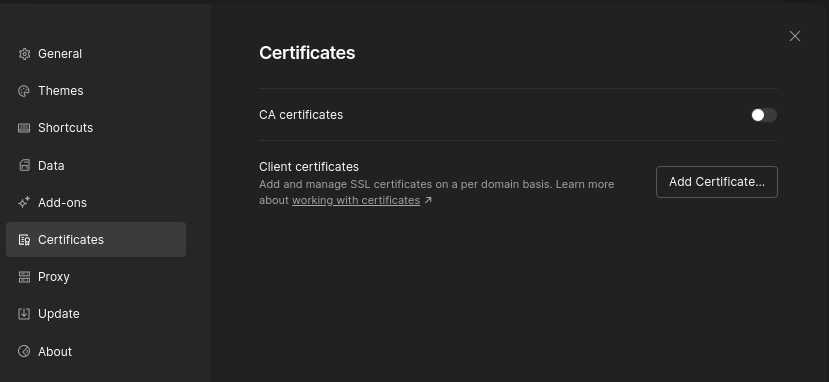
In Postman, go to the settings, select the Certificates tab, and click on "Add certificate...":
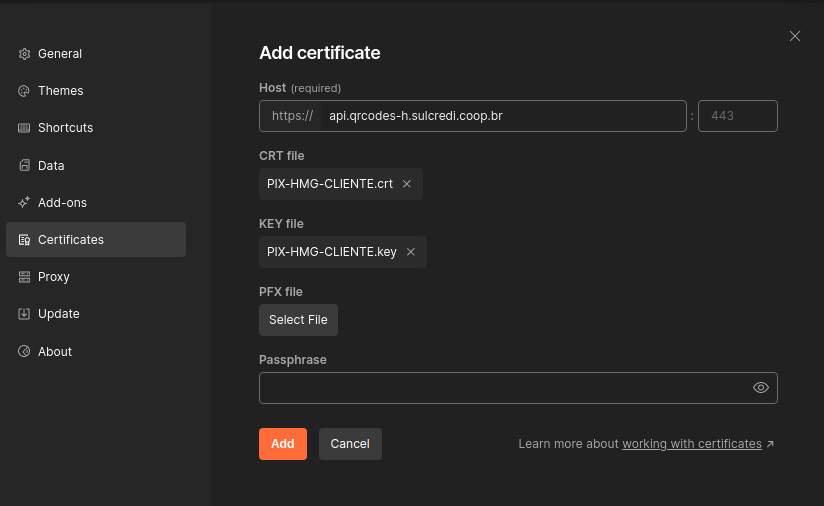
Enter the URL of the test environment.
In the "CRT file" and "KEY file" sections, click "Select file" and choose the ".crt" and ".key" files extracted to the certificate directory.
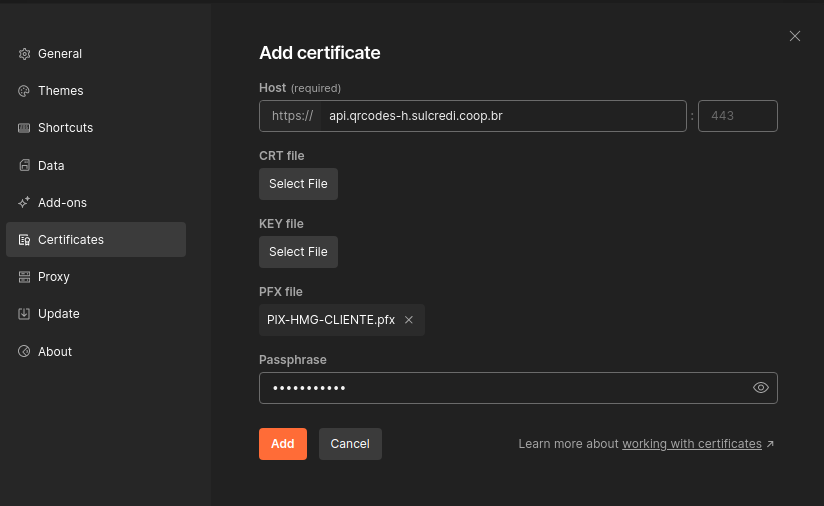
Alternatively, in the "PFX file" section, click "Select file" and choose the ".pfx" file extracted to the certificate directory. In the "Passphrase" field, enter the certificate password provided in the email.
How to Generate My Credentials?
- Access the Finance portal: Finance Portal
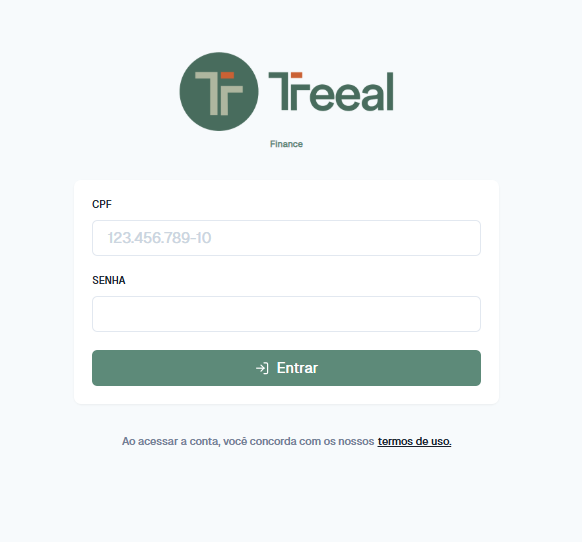
- Click on Configurações in the botton of left side menu.
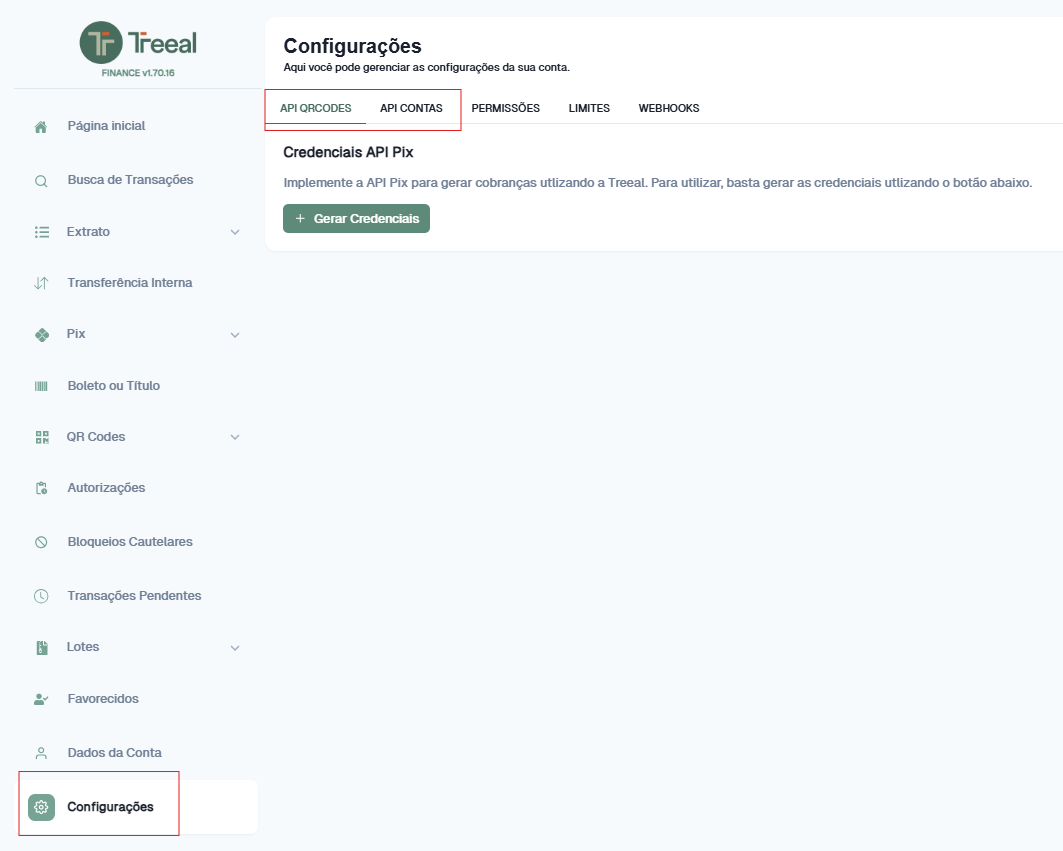
- Navigate to "API QRCodes" and "API Accounts" to create or manage your credentials.
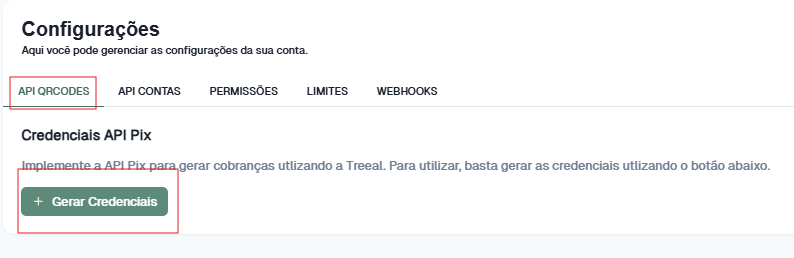

- Store your credentials on a safe place and don't share with anyone.